
You receive a message saying your account will be suspended. The link opens a polished login page. The address begins with https://, and your browser shows no certificate warning. Everything about the connection appears normal.
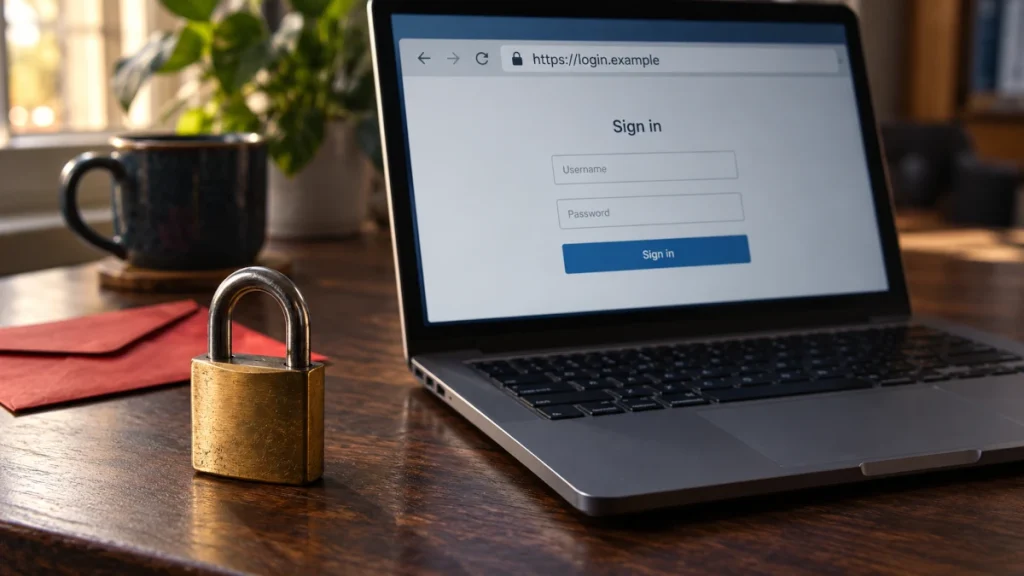
There is still one question the browser cannot answer for you: are you sending your password to the right people?
HTTPS protects the connection to the website you opened. A fraudulent website can use that protection too. Understanding the difference helps you spot a dangerous assumption before it becomes a stolen account.
Does HTTPS Mean a Website Is Safe?
No. HTTPS means the connection is protected; it does not certify that the website is honest, harmless, or the organization you intended to visit. A phishing page can have a valid certificate for its own domain and receive your information through an encrypted connection.
For the protocol itself, start with our explanation of HTTPS. Here, the focus is what you should—and should not—infer from it.
What HTTPS Actually Protects
Modern HTTPS uses Transport Layer Security (TLS). On an ordinary, properly validated browser connection, it provides three essential protections:
- Confidentiality: someone observing the network cannot simply read the protected requests and responses, including submitted passwords and page contents.
- Integrity: an attacker on the network cannot silently alter the protected traffic without detection.
- Server authentication: certificate validation and the TLS handshake establish an authenticated connection for the hostname the browser requested.
These are the core properties described in TLS 1.3, RFC 8446. In typical web browsing, TLS authenticates the server; it does not automatically authenticate you as a user. Your login is a separate application function.
The hostname matters. If you open an attacker’s domain, a correctly functioning browser can establish a correctly authenticated connection to that domain. It has no way to infer that you meant to open your bank instead. RFC 9525 explicitly recognizes this problem when a user follows a malicious link.
How Can a Phishing Website Have a Valid Certificate?
A domain-validated (DV) certificate confirms control over the domain names covered by the certificate. It does not involve an inspection of every page, a test of the operator’s honesty, or approval of the products being sold.
For example, Let’s Encrypt’s issuance process uses challenges to establish domain control, such as publishing a specific DNS record or serving a requested HTTP resource. A person who controls a domain can complete that process even if the website they subsequently publish is deceptive.
Imagine an attacker registering a convincing variation of a company’s name, obtaining a certificate for it, and copying the company’s login design. The browser checks the attacker’s hostname against the attacker’s certificate. That check can succeed. The copied logo does not change what was authenticated.
HTTPS then protects the password as it travels to the attacker, who receives it at the endpoint. No encryption needs to be broken.
This is why checking only for https:// fails as a phishing test.
Read the Address, Not Just the Logo
Suppose a fictional service uses northstar.example. Compare these addresses:
| Address | What to notice |
|---|---|
https://accounts.northstar.example/sign-in | The hostname is a subdomain of northstar.example. |
https://northstar.example.account-check.example/sign-in | The hostname is under account-check.example. The familiar name on the left does not make it part of northstar.example. |
https://northstar-login.example/sign-in | This is a separate domain, despite the similar spelling. |
https://account-check.example/northstar.example/sign-in | The familiar name is in the path. The hostname is still account-check.example. |
The .example names are reserved for documentation. These are illustrations, not live websites or claims that certificates have been issued for them; see IANA’s special-use domain registry.
Identify the hostname before examining the page’s branding. In these simple examples, its right-hand labels reveal the domain boundary. Do not turn that into a universal “last two words” rule: public suffixes can contain several labels, such as co.uk, as the Public Suffix List explains.
A matching domain is a useful check, not a complete guarantee. A genuine website can be compromised. A service can also legitimately send you to another domain for authentication or payment; if that change surprises you, verify the destination independently.
Why the Browser Icon Is Not a Trust Badge
Browser interfaces vary, and a padlock is no longer universal. Chrome’s team explained its decision to replace the address-bar lock with a settings-style icon in “An Update on the Lock Icon”: users were confusing connection security with website trustworthiness.
Browser protections can also warn about known deceptive or malicious sites. Those warnings are separate from certificate validation. A page loading without a warning is not an endorsement of its contents.
Five Checks Before You Sign In or Pay
- Reach the service independently. If an unexpected message asks you to sign in, open your usual bookmark or the official app instead. The FTC recommends contacting the company through a website or number you already know is genuine.
- Inspect the complete hostname. Tap or click the address bar if it is shortened. Look for extra domain labels, altered spelling, and unexpected destinations after a redirect.
- Keep connection and phishing warnings meaningful. Do not enter credentials or payment details through an HTTP connection, and do not click through a certificate warning to complete a transaction. Investigate through a trusted route.
- Question the request. A familiar logo does not explain why an unexpected page needs your password, card details, or a one-time login code. Urgency should give you a reason to pause.
- Verify surprising changes elsewhere. If the login or payment destination has changed, check through the official app or a previously trusted contact channel. A support number displayed on the questionable page is not independent confirmation.
Chrome’s connection-security guidance also advises checking the site name and being careful with personal information even on securely connected sites. HTTPS belongs in your checks; it cannot replace the others.
What About Certificate Warnings and Data Storage?
A certificate warning means the browser could not establish the expected trust for that connection. The cause might involve the site, your device, or the network; it does not automatically prove fraud. It does mean you should resolve the problem before transmitting sensitive information.
HTTPS also protects data in transit, not everything that happens after delivery. The destination can read submitted information, and encryption on the connection does not secure its database, prevent abusive use, or remove malware from a compromised device.
On many websites, TLS terminates at a reverse proxy or CDN. Any connection from that system to the origin server needs its own protection. Your browser’s HTTPS status does not reveal that entire internal route. OWASP’s TLS guidance covers termination and the limits of protection after data arrives.
The Question to Remember
Before trusting a login page, check both the destination and the connection. HTTPS helps protect what you send. You still need to establish that the website receiving it is the one you meant to use.