
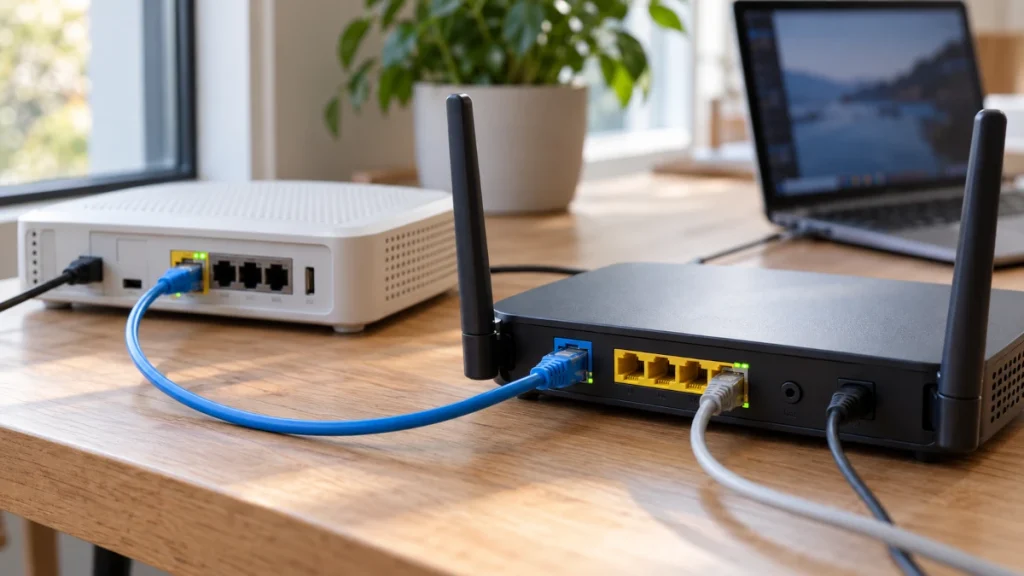
You create a port-forwarding rule, check the address twice, and try again. The server works over Wi-Fi, but an external connection still fails.
The rule may be perfectly correct. You may have configured the second router on a path where the first one has never been told what to do with incoming traffic.
When port forwarding is not working, check four things in order: the local service, the router’s WAN IPv4 address, any upstream NAT, and access from a genuinely external network. A saved rule proves that the router accepted your settings; it does not prove that a connection can reach your server.
The correct rule on the wrong router
Consider this illustrative home-lab setup. Both private networks use a /24 subnet mask:
| Device | WAN address | LAN address |
|---|---|---|
| ISP gateway | Public IPv4 address | 192.168.1.1 |
| Your own router | 192.168.1.2 | 192.168.50.1 |
| Server | — | 192.168.50.20 |
Your router forwards TCP port 8443 to 192.168.50.20:8443. That handles traffic arriving at your router, but internet traffic reaches the ISP gateway first. Without an upstream forwarding rule, the connection never reaches the rule you configured.
This is double NAT: two devices translate addresses along the same path. If you retain both NAT layers, the mappings must form a continuous chain:
| Configure on | Incoming TCP port | Forward to |
|---|---|---|
| ISP gateway | 8443 | 192.168.1.2:8443 |
| Your router | 8443 | 192.168.50.20:8443 |
Notice the first destination: the downstream router’s WAN address, not the server’s address on a different subnet.
The server’s default gateway is 192.168.50.1, so replies return through the same routers. Keep the downstream router’s WAN address and the server’s LAN address stable, using DHCP reservations where supported or appropriate static configurations.
1. Prove that the service works locally
From another Windows computer on the server’s LAN, run this in PowerShell, replacing the address and port with yours:
Test-NetConnection -ComputerName 192.168.50.20 -Port 8443Look for TcpTestSucceeded : True. This confirms a TCP connection to that port; it does not confirm that the application’s login, TLS certificate, or other functions work. See Microsoft’s Test-NetConnection documentation.
If the connection fails, investigate the service, host firewall, or local network before changing NAT rules. On a Windows server, inspect the listener:
Get-NetTCPConnection -State Listen -LocalPort 8443A listener bound only to 127.0.0.1 accepts local connections, not connections to the server’s LAN address. For IPv4, a listener on the LAN address or 0.0.0.0 can accept LAN traffic, subject to firewall rules. Microsoft’s Get-NetTCPConnection documentation explains the address and state fields.
An open firewall port does not create a listening service. You need both.
2. Check whether your WAN address is public
Open the router’s Internet or WAN status page and find its IPv4 address. Do not confuse it with the LAN address used to administer the router.
These ranges are not public IPv4 addresses:
| WAN address range | Meaning |
|---|---|
10.0.0.0–10.255.255.255 | RFC 1918 private address space |
172.16.0.0–172.31.255.255 | RFC 1918 private address space |
192.168.0.0–192.168.255.255 | RFC 1918 private address space |
100.64.0.0–100.127.255.255 | RFC 6598 shared address space, commonly used for CGNAT |
The first three ranges are defined in RFC 1918. The fourth is 100.64.0.0/10, allocated by RFC 6598.
A private WAN address is a clue, not a complete diagnosis. It may belong to another router in your home or to your ISP’s network. Check the upstream device if you have one.
Also compare the WAN address with the public IPv4 reported by an IP-checking service from the same connection, with VPNs and proxies disabled. Different addresses suggest upstream translation; matching addresses do not guarantee that inbound traffic is allowed.
With carrier-grade NAT (CGNAT), the ISP operates the upstream translator, often sharing a public IPv4 address among subscribers. Your router’s forwarding rule cannot configure that ISP-controlled device. TP-Link’s port-forwarding troubleshooting guide covers this limitation.
3. Fix the NAT layer you identified
For double NAT within your own network, choose one of these approaches:
- Put the ISP gateway in bridge mode, where supported, leaving routing and NAT to your router.
- Put your additional router in access point mode, leaving routing and NAT to the ISP gateway.
- Retain both routers and configure the forwarding chain shown above.
NETGEAR documents the bridge and access point options. Follow your equipment’s instructions: changing modes can alter addressing and available features.
For CGNAT, ask your ISP for a public IPv4 address that supports inbound connections, or whether it offers an explicit inbound port mapping. If that is unavailable, an authenticated overlay network or outbound tunnel may suit your application; Tailscale, for example, can work without manually forwarding ports.
Public and static are different properties. A dynamic public IPv4 address can support port forwarding. Dynamic DNS tracks address changes; it does not remove CGNAT.
4. Test from outside, then check the firewall
Test through a separate internet connection. A Windows laptop connected to a phone’s cellular hotspot can run:
Test-NetConnection -ComputerName "YOUR_PUBLIC_IPV4" -Port 8443Replace YOUR_PUBLIC_IPV4 with your current public IPv4 address and use the rule’s external port. Keep the service running during the test.
Testing your public address from your own LAN depends on NAT loopback, also called hairpinning. A router that does not handle that path can make a working external service appear unreachable locally. RFC 5382 describes TCP hairpinning.
If local access works but external access fails, check the forwarding destination, TCP versus UDP selection, upstream rules, and host firewall. A firewall rule restricted to the local subnet can allow your LAN test while rejecting internet clients. In Windows, check the rule’s protocol, local port, remote-address scope, and active profile; Microsoft’s firewall rule guide explains these controls.
The PowerShell tests above check TCP, not UDP. Use the actual application’s diagnostics for UDP services. Successful TCP connectivity also does not guarantee that an application with additional ports will work.
If connectivity succeeds by address but fails by hostname, check DNS separately. This guide covers IPv4; direct IPv6 access involves routing and firewall permissions rather than these IPv4 NAT mappings.
Make the connection work—and keep control of it
Expose only the service you intend to publish, with authentication, encryption, and current software. For private administration, prefer a VPN or authenticated overlay to publishing RDP, SMB, or a router’s management interface directly.
The most useful question is where the connection stops. A failed LAN test points toward the service or local network. A nonpublic WAN address points toward an upstream device. A working external test with a failed internal one points toward loopback behavior. Each result gives you a specific next step—and saves you from rebuilding a rule that was already correct.